How to Choose the Right Antivirus and Set It Up Effectively
How to Choose the Right Antivirus and Set It Up Effectively
In an increasingly connected world, protecting your devices from digital threats is essential. Viruses, malware, and phishing attacks can compromise your data and disrupt your daily activities. Choosing the right antivirus and setting it up correctly ensures your system stays secure without unnecessary complications.
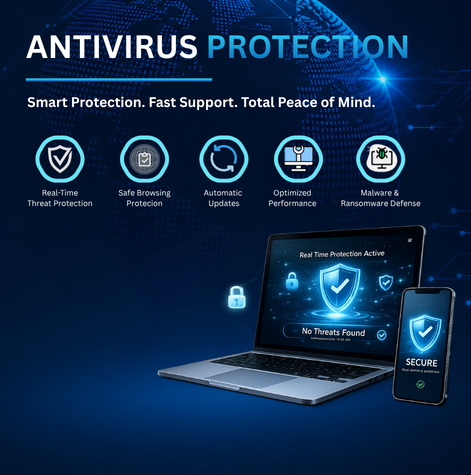
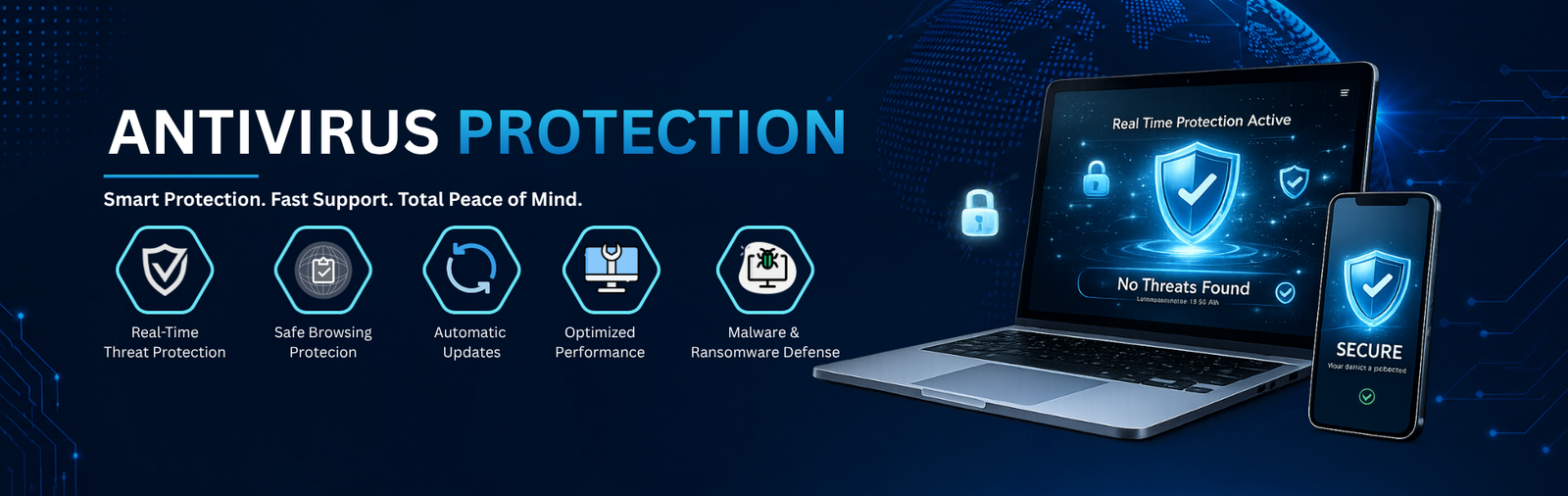
Real-time protection
Anti-malware
Safe browsing
Choosing the Right Antivirus
Before downloading anything, understand what you need. The right antivirus fits your habits, devices, and risk level.
Understand Your Usage
Casual users who browse and stream may need only basic protection. Those handling sensitive data or frequent downloads should look for more comprehensive solutions.
Look for Key Features
A good antivirus should offer real-time threat detection, protection against malware and ransomware, safe browsing tools, and automatic updates.
Evaluate Cost vs. Value
Free programs offer decent everyday protection. Paid versions add enhanced security layers, data protection features, and technical support — choose based on your risk level.
Consider Performance Impact
Your antivirus should run smoothly in the background without noticeably slowing down your device during everyday tasks.
Ensure Compatibility
Confirm the software supports your operating system. If you use multiple devices, look for multi-device coverage in a single subscription.
Check Reliability
Opt for well-known, regularly updated solutions. Reliable providers continuously improve detection to keep up with emerging threats.
Set Up Antivirus Properly
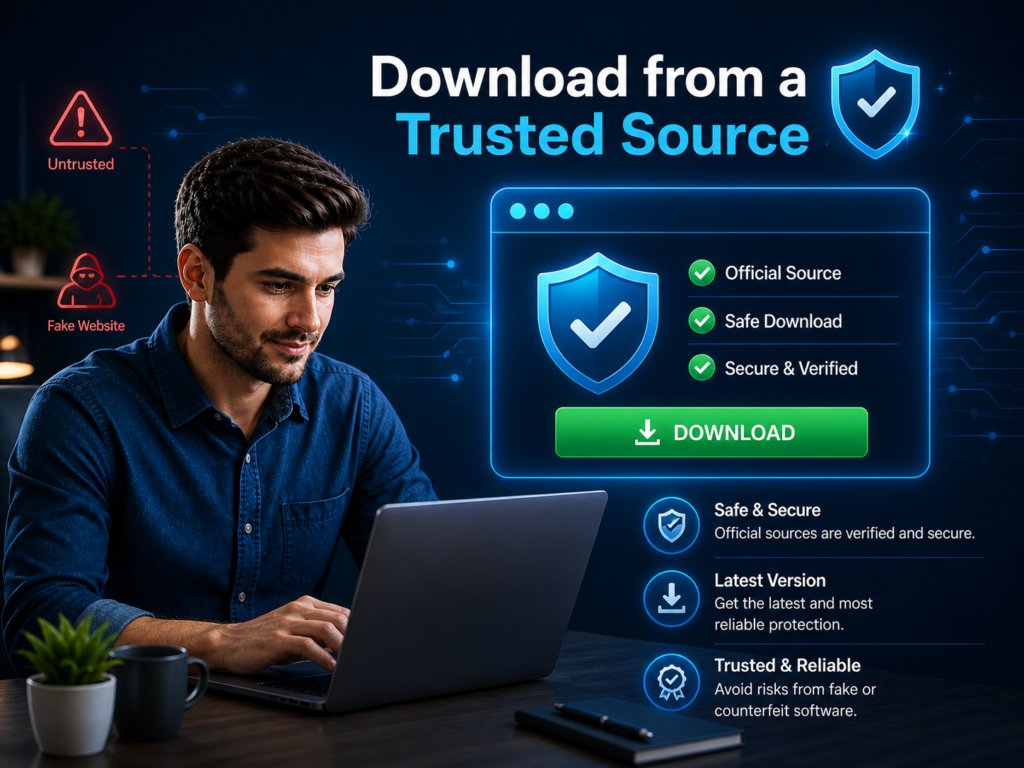
Download from a Trusted Source
Always download antivirus software from official or trusted sources to avoid installing harmful or counterfeit programs.
Install the Software
Run the installer and follow the instructions provided. The installation process is typically simple and may require restarting your device.
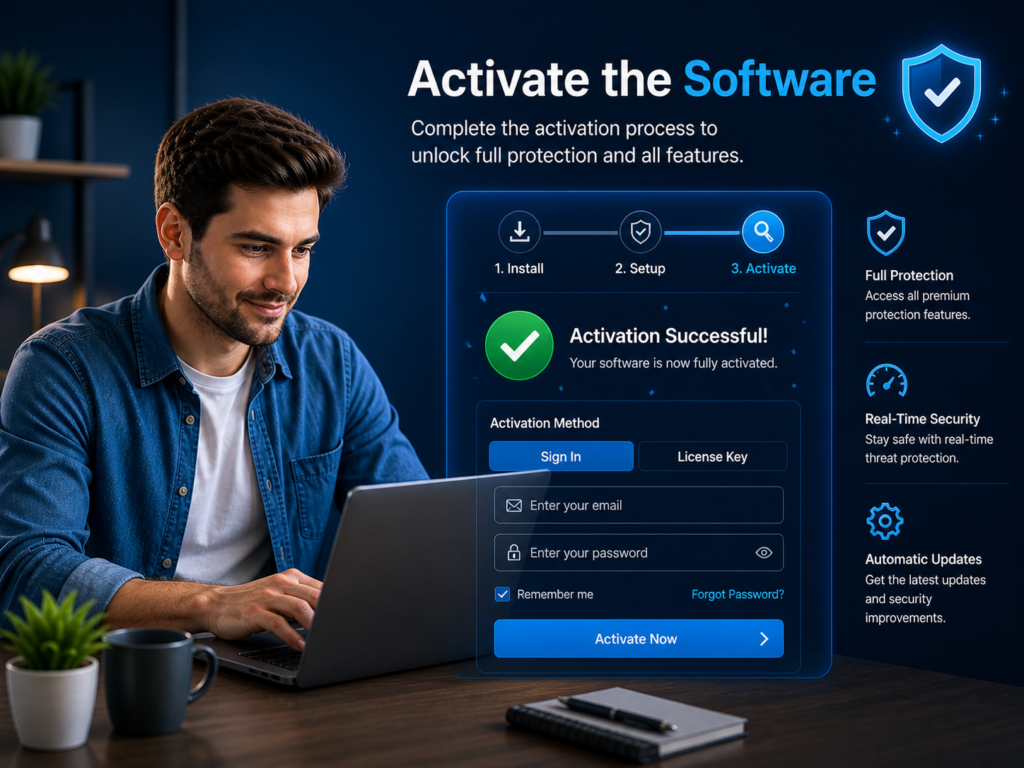
Activate the Software
If required, complete the activation process by signing in or entering a license key to access full features.
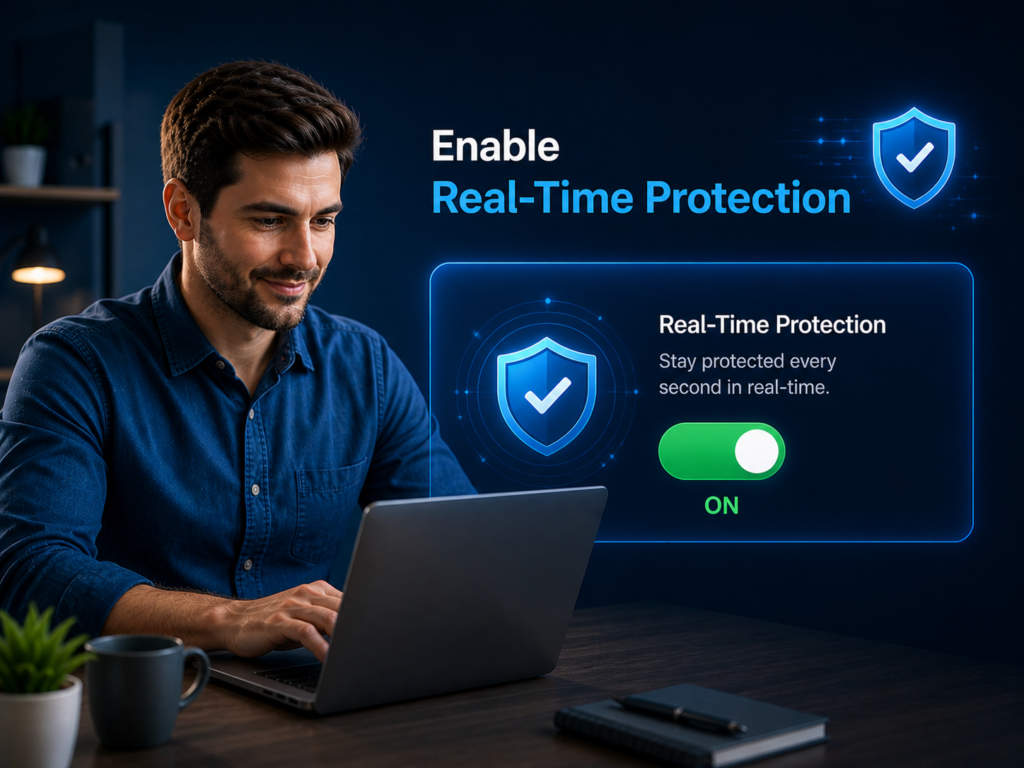
Enable Real-Time Protection
Ensure that real-time protection is turned on so threats can be detected and blocked instantly.
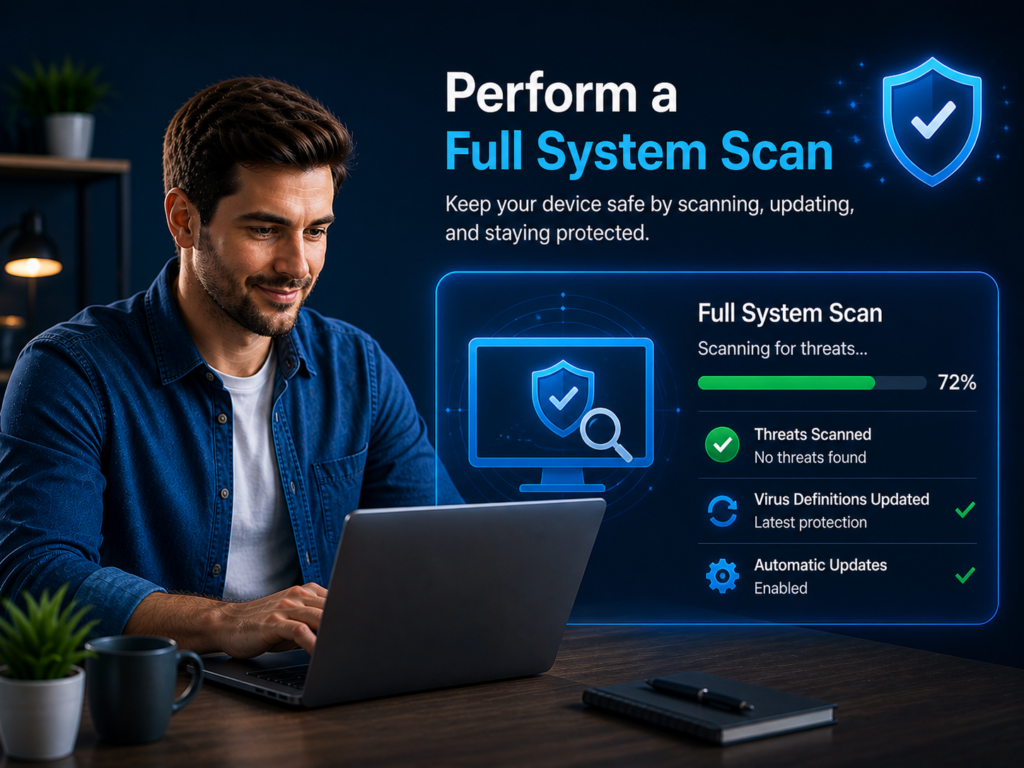
Perform a Full System Scan
After installation, update the antivirus to get the latest threat definitions. Enable automatic updates for ongoing protection.
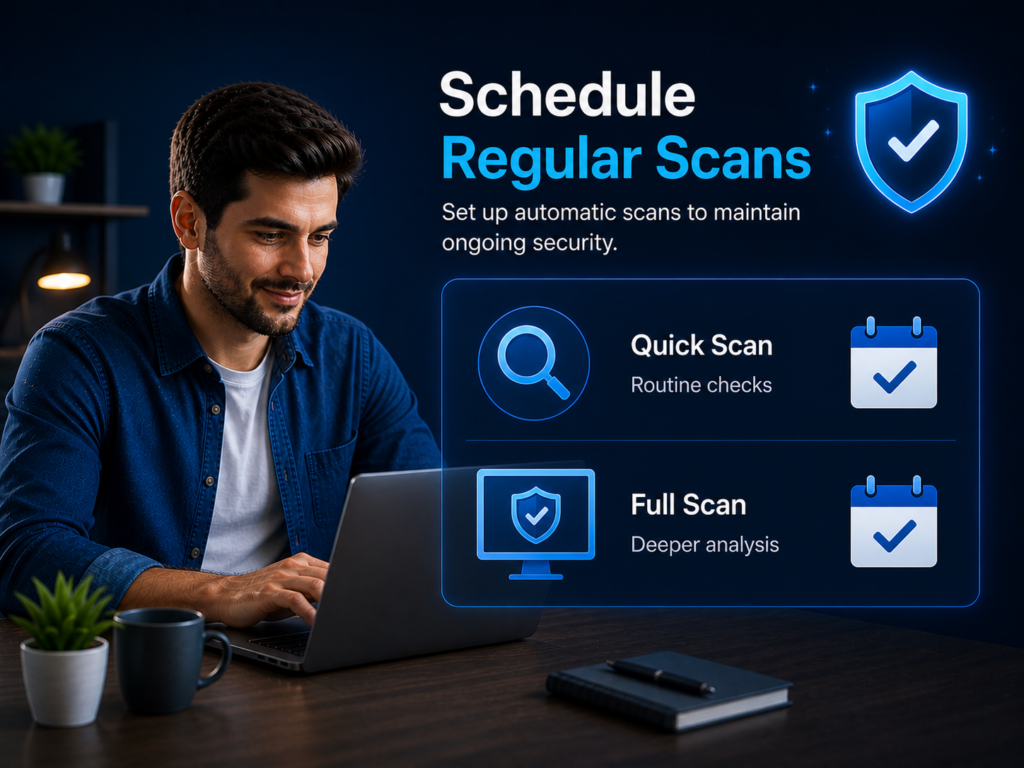
Schedule Regular Scans
Set up automatic scans to maintain ongoing security:
Quick scans for routine checks
Full scans for deeper analysis
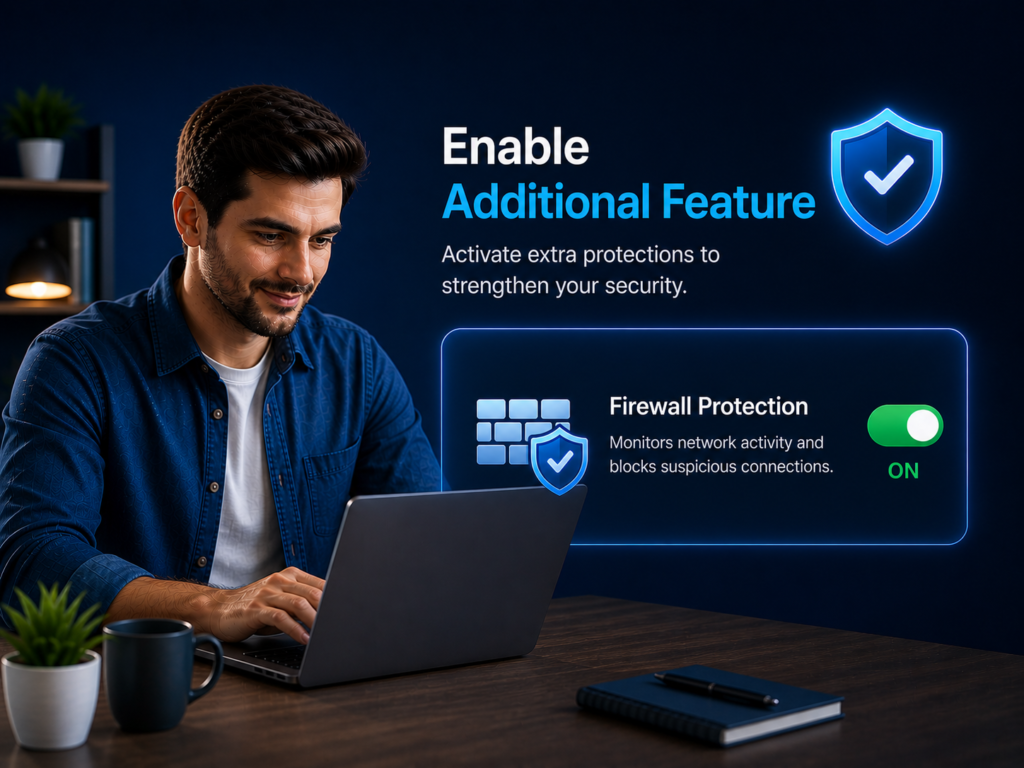
Enable Additional Feature
If available, activate extra protections such as firewall settings, email scanning, or ransomware defense to strengthen your security.
Select the fields to be shown. Others will be hidden. Drag and drop to rearrange the order.